
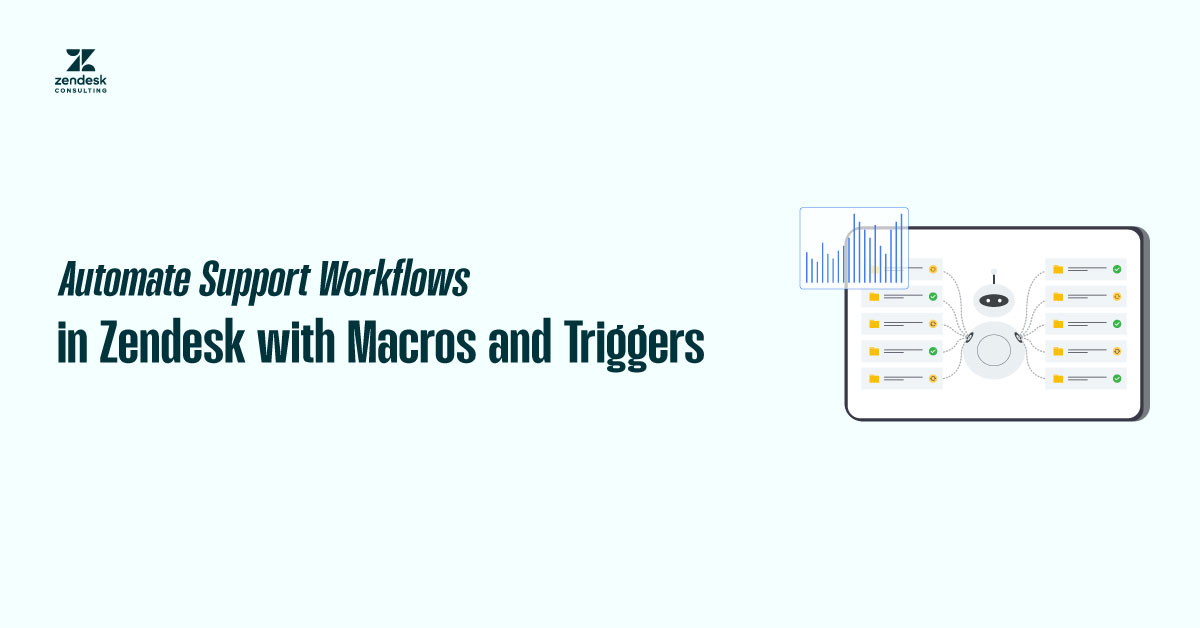
When your support team is overwhelmed with repetitive tickets, even the most dedicated agents can become bogged down. Zendesk’s automation tools, macros, triggers, and automations are designed to speed up responses, improve accuracy, and free up agents for high-value conversations. By combining these features, you can turn a cluttered queue into a streamlined, efficient support machine.
Set Up Macros in Zendesk
Step 1: Access the Macro Settings
- In your Zendesk Admin Center, go to Workspaces > Macros.
- Click Add Macro.
Step 2: Write a Clear Title and Description
Make it easy for agents to find your macro by using a descriptive name. For example:
- “After-Hours Reply – Business Hours Follow-up”
- “VIP Acknowledgment – High Priority Customer”
Step 3: Add Actions
Choose from a variety of actions:
- Insert a pre-written comment
- Change ticket status (e.g., “On Hold”)
- Assign the ticket to a group or an individual
- Add or remove tags
Include personalization placeholders, such as {{ticket.requester.first_name}}, to make canned replies feel more human.

Build Triggers in Zendesk
Step 1: Navigate to Triggers
Go to Admin Center > Business Rules > Triggers and click Add Trigger.
Step 2: Name and Categorize the Trigger
Keep names descriptive:
- “Auto-Assign Billing to Finance”
- “Escalate VIP Tickets to Tier 2”
Step 3: Set Conditions
Conditions are split into two types:
- All conditions: All must be true for the trigger to run
- Any conditions: At least one must be true
Example for VIP ticket tagging:
- All Conditions:
- The ticket is created
- Organization is VIP Customers
Step 4: Add Actions
Actions might include:
- Assign to a group
- Add priority status
- Send an email to a manager
- Add tags for reporting
Create Automations in Zendesk
Step 1: Go to Automations
In Admin Center, navigate to Business Rules > Automations > Add Automation.
Step 2: Define the Time-Based Condition
Example: “Ticket status is Open for 24 hours without a reply from an agent.”
Step 3: Select the Action
Actions could be:
- Send an email reminder to an agent
- Update ticket status
- Notify the requester of delays
Example Use Case: An automation sends a follow-up to a customer if they haven’t replied within 48 hours, reminding them to provide needed details.
Best Practices for Zendesk Automation
Start Small: Begin with macros to standardize messaging before adding complex triggers.
Avoid Over-Automation: Excessive automation can cause tickets to be unnecessarily bounced between queues.
Test Before Deploying: Use test tickets to ensure automation logic works as intended.
Review Regularly: Update macros and triggers periodically to reflect current policies.
Use Tags for Reporting: Tags added by triggers or automations can help track performance trends.
How to Scale Your Automation Strategy?
As your team grows, automation should evolve. Start with ticket routing and SLA alerts, then expand into AI-assisted responses and multi-step workflow chains. Zendesk’s AI features can recommend macros, predict ticket intent, and automatically prioritize tickets.
Integrations with tools like Slack, Salesforce, and Jira can extend automation beyond Zendesk, ensuring that updates flow seamlessly across your business ecosystem without requiring human intervention.
Conclusion
Zendesk’s macros, triggers, and automations are powerful tools for making your support operation faster, more consistent, and less stressful for your team. By starting small, refining your rules, and scaling thoughtfully, you can create a highly efficient support system that meets customer expectations without burning out your agents.