When your support inbox is overflowing, the difference between chaos and clarity often comes down to how you organize your tickets. Zendesk offers three powerful tools: Views, Tags, and Service Level Agreements (SLAs) that, when used together, can completely transform your help desk operations.
Instead of letting urgent issues get buried, you can ensure VIP customers are prioritized, SLA deadlines are met, and agents always know what to tackle next. This guide will walk you through exactly how to set them up, provide best practices for each, and show you how to combine them into an efficient ticket triage system.
Why Ticket Prioritization Matters?
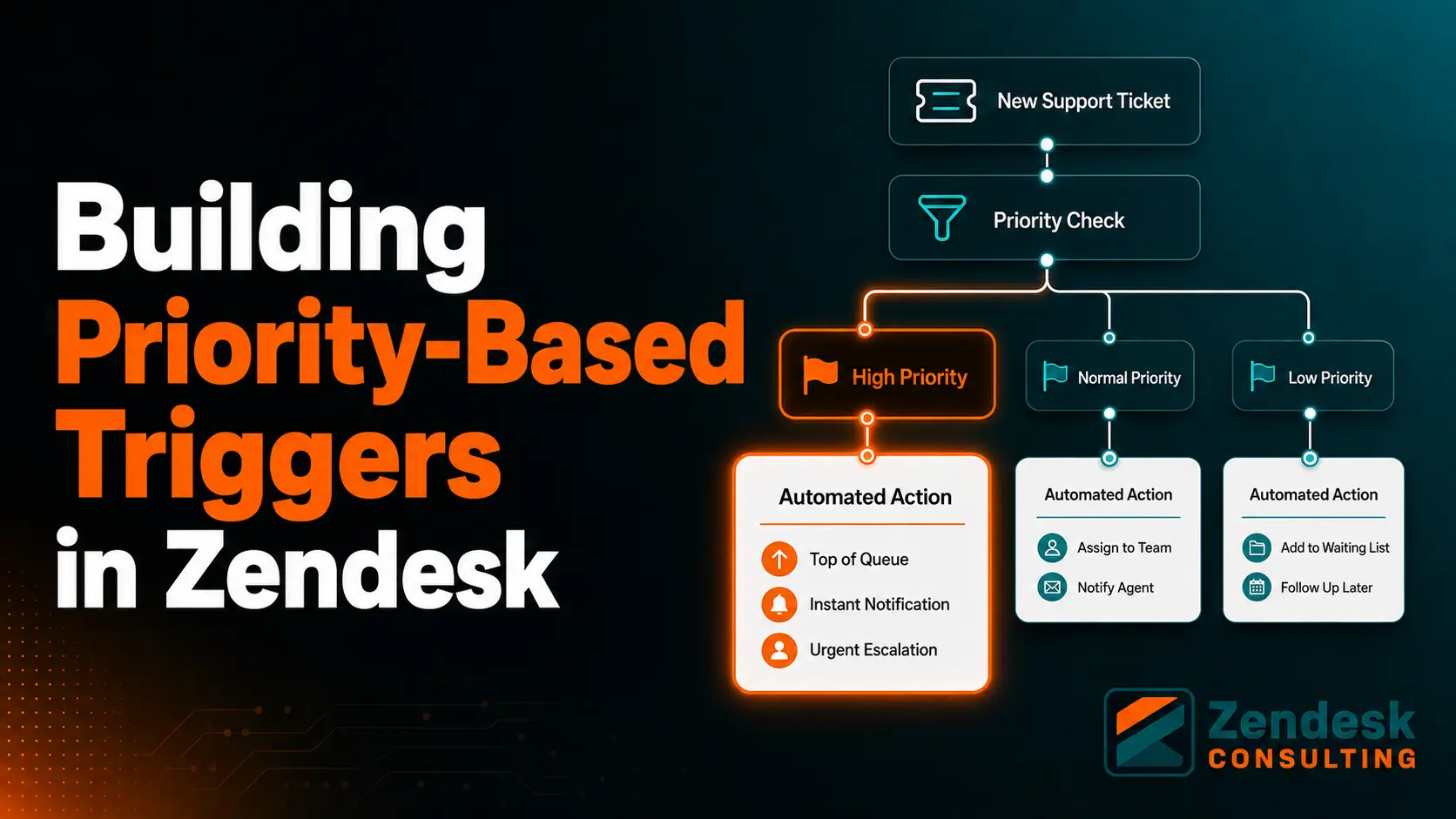
Customer support teams are often measured by their ability to respond quickly and resolve issues effectively. Without proper prioritization, high-impact tickets can get lost in the shuffle, leading to SLA breaches, dissatisfied customers, and increased churn.
By implementing smart ticket organization, you not only improve CSAT scores but also reduce agent stress and increase operational efficiency. Zendesk makes this easier by giving you tools that work in tandem:

- Views filter and display tickets based on conditions.
- Tags categorize and track tickets for routing and reporting.
- SLAs enforce time-based performance targets.
When configured effectively, these features help teams to shift from reactive firefighting to proactive service delivery.
Use Zendesk Views to Organize and Focus
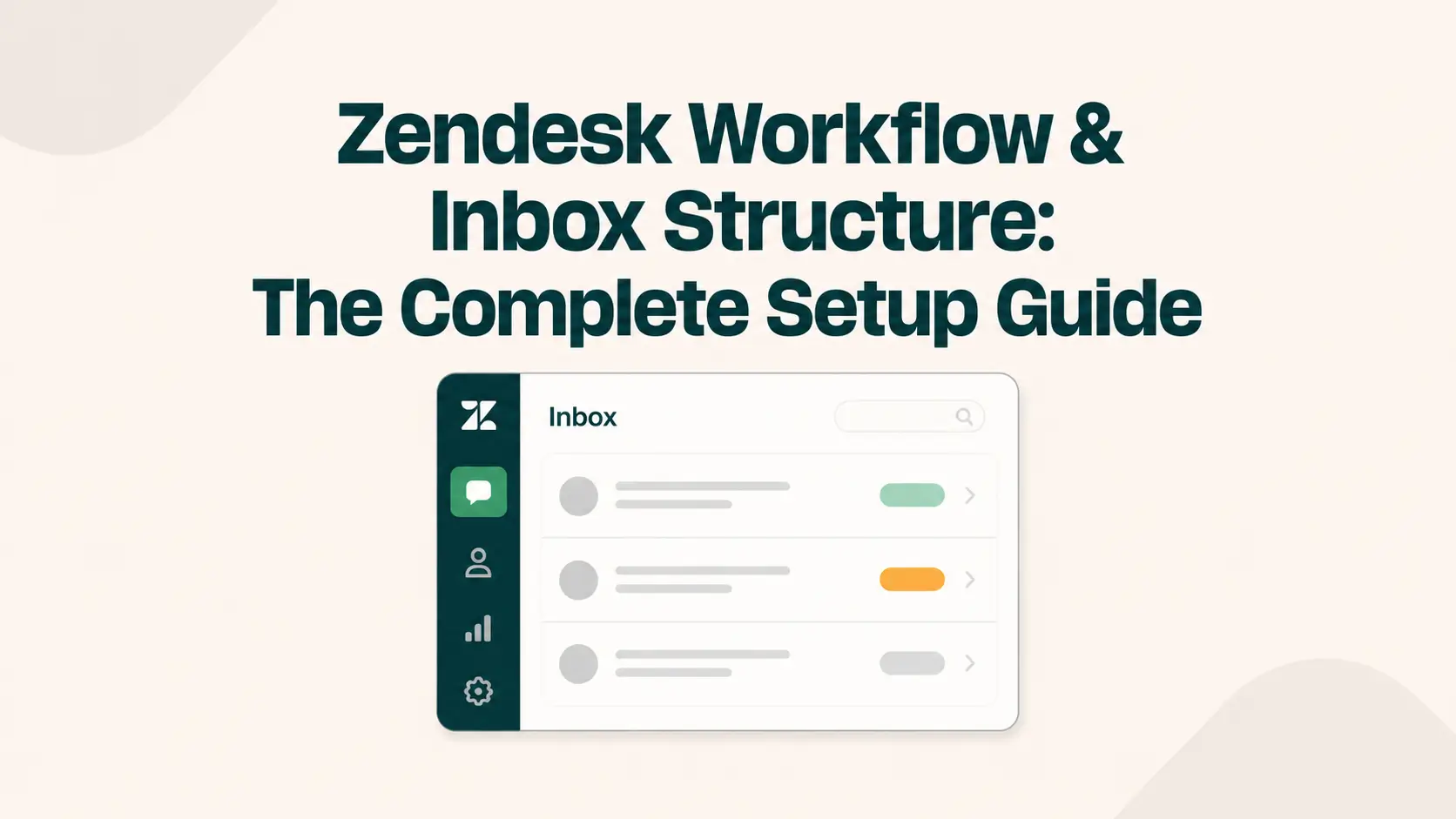
Zendesk Views allow you to create custom ticket lists filtered by specific criteria. Each view acts as a curated work queue so that agents can focus on the most relevant cases.
How to Set Up a View?
- Go to Admin Center > Workspaces > Views.
- Click Add View.
- Give your view a descriptive name, such as “Open – High Priority” or “Pending – Customer Follow-Up.”
- Set conditions. For example, for an SLA at-risk view, you might use:
Status: Open or Pending
SLA status: Breached or About to breach
- Choose the ticket fields you want displayed in the list, such as subject, requester, priority, and SLA breach time.
- Save the view and set permissions so it’s visible to the right teams.
Example Views to Create
Open – High Priority: Keeps urgent tickets at the top of the queue.
Unassigned – VIP Customers: Ensures premium clients are addressed first.
Pending – Customer Follow-Up Needed: Helps track cases waiting on customer replies.
Overdue – SLA at Risk: Highlights tickets in danger of breaching deadlines.
Views remove the need for agents to dig through the entire ticket list, instead guiding them toward their highest-value work.
Use Tags for Smarter Routing and Reporting
Tags in Zendesk are small text labels you can attach to tickets. They can be applied manually by agents, automatically through triggers, or inherited from the customer or organization record.
Why Tags Matter?
Tags are helpful for:
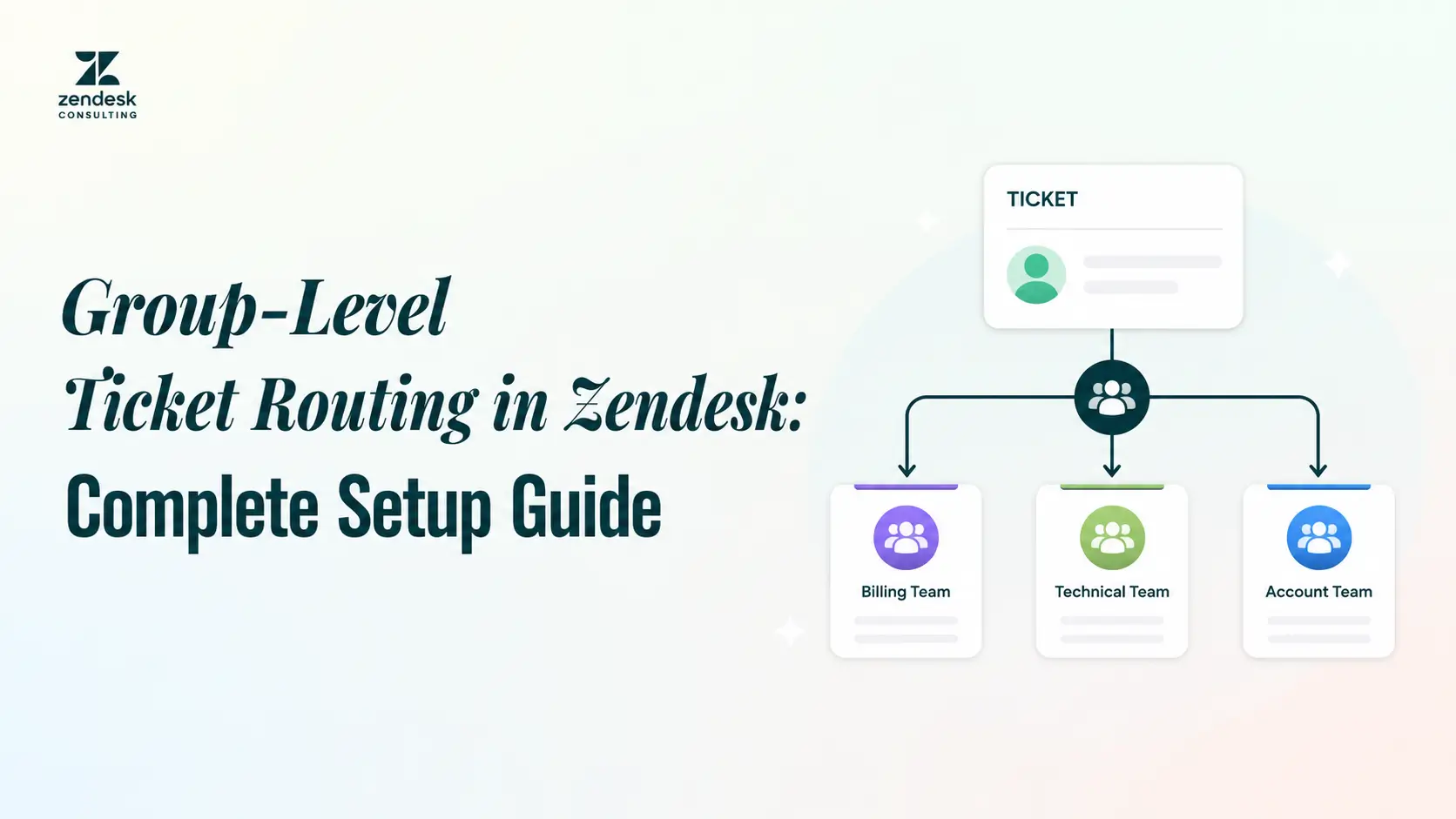
- Routing tickets to specialized teams
- Tracking issues by product, region, or severity
- Generating reports on recurring problems
- Creating targeted Views for specific types of tickets
How to Set Up Tag Automation?
- Go to Admin Center > Business Rules > Triggers.
- Create a trigger that adds a tag based on ticket conditions.
- For example, a trigger could:
- Add the tag “billing” if the ticket subject contains “invoice” or “payment.”
- Add “vip_customer” if the requester belongs to a VIP organization.
- These tags can then be used to filter Views, run automations, or produce analytics reports.
Use consistent tag naming conventions to maintain clean reporting. For example, use underscores instead of spaces and keep tag categories organized, like product_software or region_europe.
Apply SLAs to Enforce Response and Resolution Goals
Service Level Agreements in Zendesk define your time commitments for responding to and resolving tickets. They ensure your team meets performance expectations and that critical issues get the attention they deserve.
How to Configure SLAs
- In Admin Center, go to Objects and Rules > Business Rules > SLAs.
- Create a policy and define:
- Ticket priority levels (Low, Normal, High, Urgent)
- Communication channels (Email, Chat, Phone, Messaging)
- Set time targets for:
- First response (e.g., 1 hour for Urgent, 4 hours for High)
- Full resolution (e.g., 4 hours for Urgent, 24 hours for High)
- Save and apply the SLA policy to relevant ticket types.
When paired with triggers, SLAs can alert agents when tickets are nearing breach, ensuring they act before deadlines pass.
Combine Views, Tags, and SLAs for Maximum Impact
The real power comes from combining these tools. For example:
- Tags identify tickets from VIP customers.
- Those tickets are assigned to a high-priority SLA.
- A dedicated View shows only “Unassigned – VIP Customers.”
Another scenario is preventing SLA breaches. Tags classify tickets by product line, SLAs set deadlines based on issue severity, and Views display “Overdue – SLA at Risk” tickets so they’re impossible to miss.
When used together, Views, Tags, and SLAs transform Zendesk into a ticket triage system, ensuring the right tickets are addressed at the right time, every time.
Best Practices for Ticket Prioritization in Zendesk
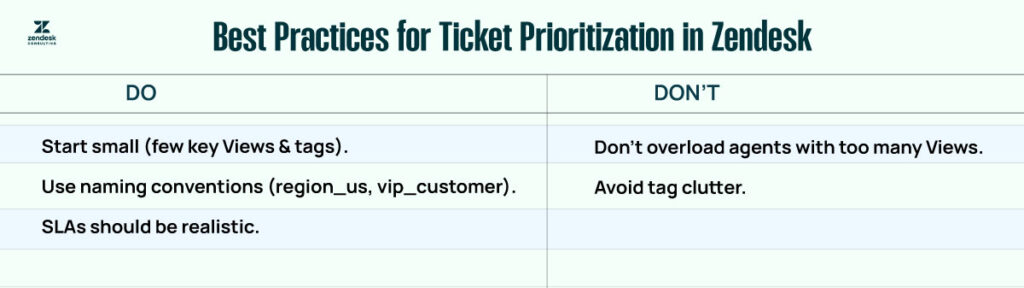
Start small by creating a few high-value Views, such as urgent tickets or pending customer follow-ups. Introduce tags gradually, focusing on categories that will help with both routing and reporting. SLAs should reflect realistic goals for your team size and customer expectations.
Avoid overcomplicating your setup. Too many Views can confuse agents, excessive tags can clutter reporting, and overly strict SLAs can create unnecessary pressure. Review your setup regularly and adjust based on performance data and team feedback.
Scale Your Zendesk Setup
As your business grows, so will your ticket volume. Scaling Zendesk’s organization features means:
- Creating team-specific Views so each department works from its own queue.
- Expanding tag usage to track new products, services, or markets.
- Adjusting SLA policies as response expectations evolve.
Integrations can further enhance efficiency. Linking Zendesk with tools like Jira for technical escalations, Slack for real-time alerts, or Salesforce for CRM data can make your Views, Tags, and SLAs even more powerful.
Conclusion
Zendesk’s Views, Tags, and SLAs aren’t just features; they’re the backbone of effective ticket management. When implemented together, they provide your team with a clear plan of action, ensuring that urgent issues are addressed first, SLAs are consistently met, and customers feel valued.
By transforming your ticket list into a prioritized workflow, you can enhance customer satisfaction, minimize SLA breaches, and provide your agents with the clarity they need to succeed.